Why diameter measurement still causes problems in forestry
Diameter measurement sounds simple on paper. In reality, it’s one of the most common sources of disputes in timber trading. Logs are measured under time pressure, visibility is imperfect, piles are large, and different scaling rules apply across regions. A few millimetres per log quickly turn into cubic meters — and into money.
That’s why forestry companies increasingly move away from purely manual methods and toward digital, log-level diameter measurement. Timbeter’s Diameter Measurement functionality is designed exactly for this: fast field work, objective results, and full transparency for everyone involved.
What diameter measurement with Timbeter does
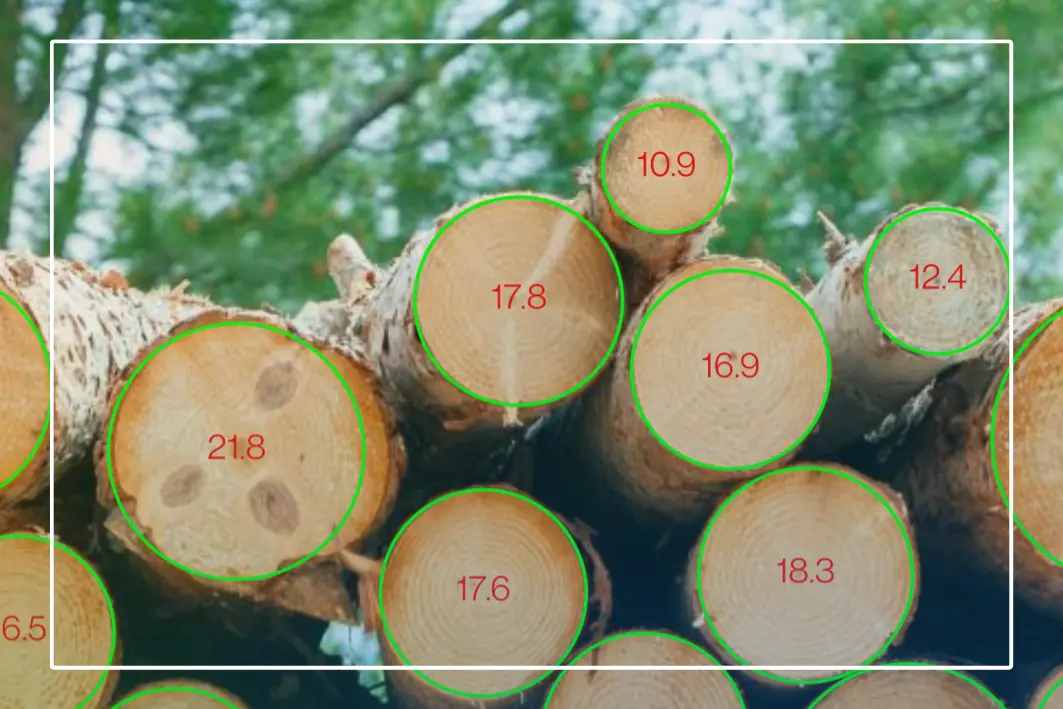
With one photo of a log pile or truck, Timbeter allows you to:
- Count every visible log
- Measure the diameter of each individual log
- Calculate average diameter and diameter distribution
- Calculate volume using internationally recognised formulas
- Store and share results digitally for audits, logistics, or trade
This makes diameter-based scaling clearer, repeatable, and easier to verify — especially when multiple parties are involved.
What you need before measuring
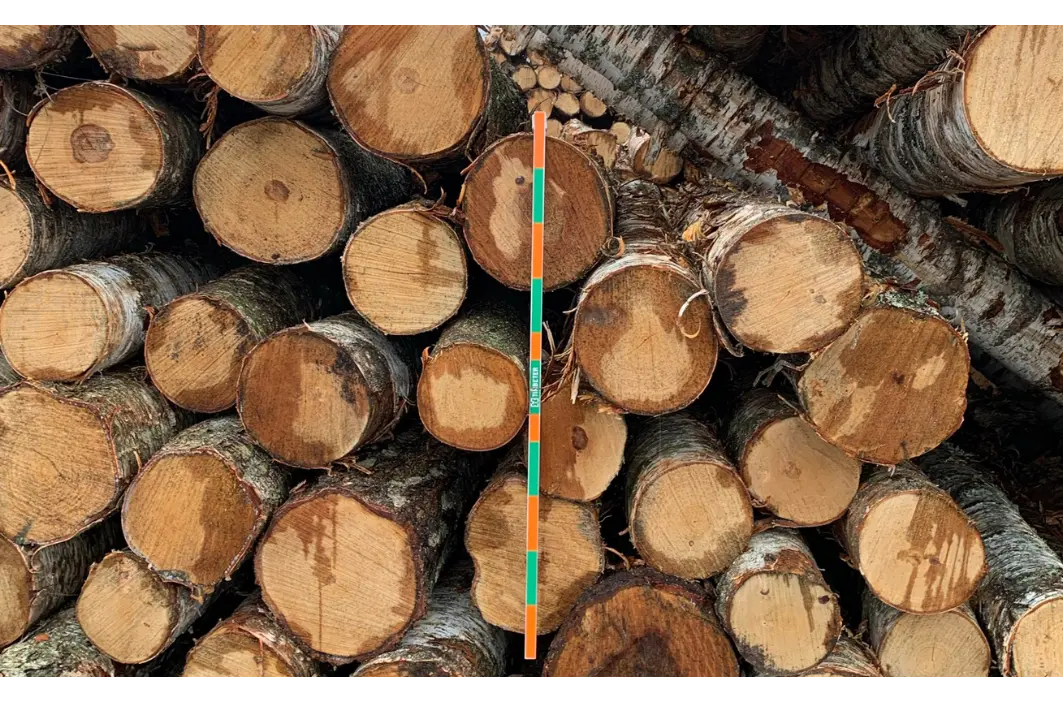
Before starting any diameter measurement, it is essential to prepare a reference.
The reference is a physical object of a known length placed in the photo. Timbeter uses it to convert pixels into real-world measurements. Without a correctly placed and entered reference, precise diameter and volume calculations are not possible.
For reliable results, the reference must be placed on the same plane as the log ends, clearly visible and unobstructed, and its real length must be entered into the app exactly as measured. Angled, floating, or partially hidden references can affect scaling accuracy.
This single step is the foundation of reliable results and transparent measurements.
Step-by-Step: How to measure diameters with Timbeter
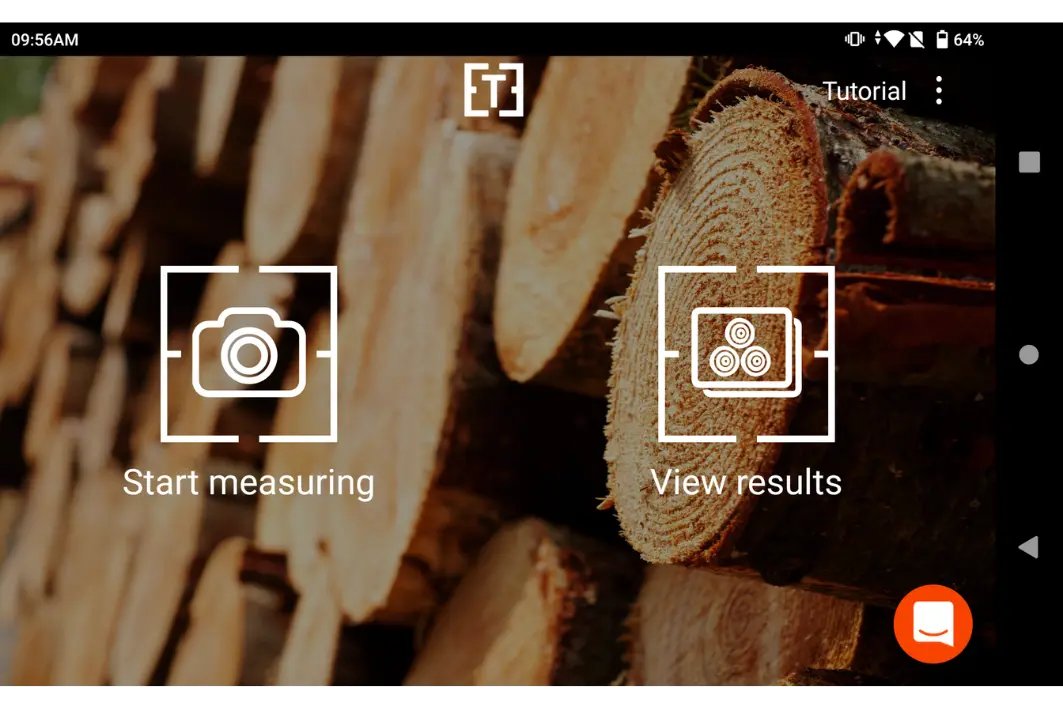
1. Open the Timbeter App
- Open the Timbeter application
- Choose Start a new measurement
- You can also access finished measurements from this screen
2. Take a photo of the pile
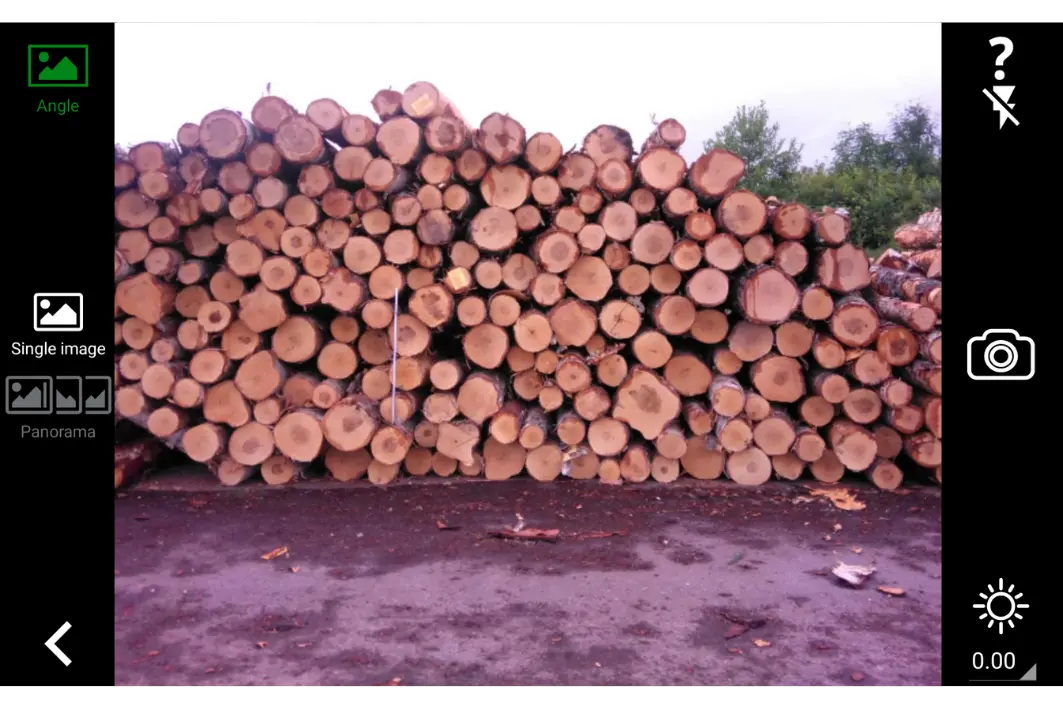
- Position yourself directly in front of the log ends
- Use single shot or panorama mode depending on pile size
- Keep the phone level (the app shows the angle)
- Adjust lighting or use flash if needed
- Capture the image
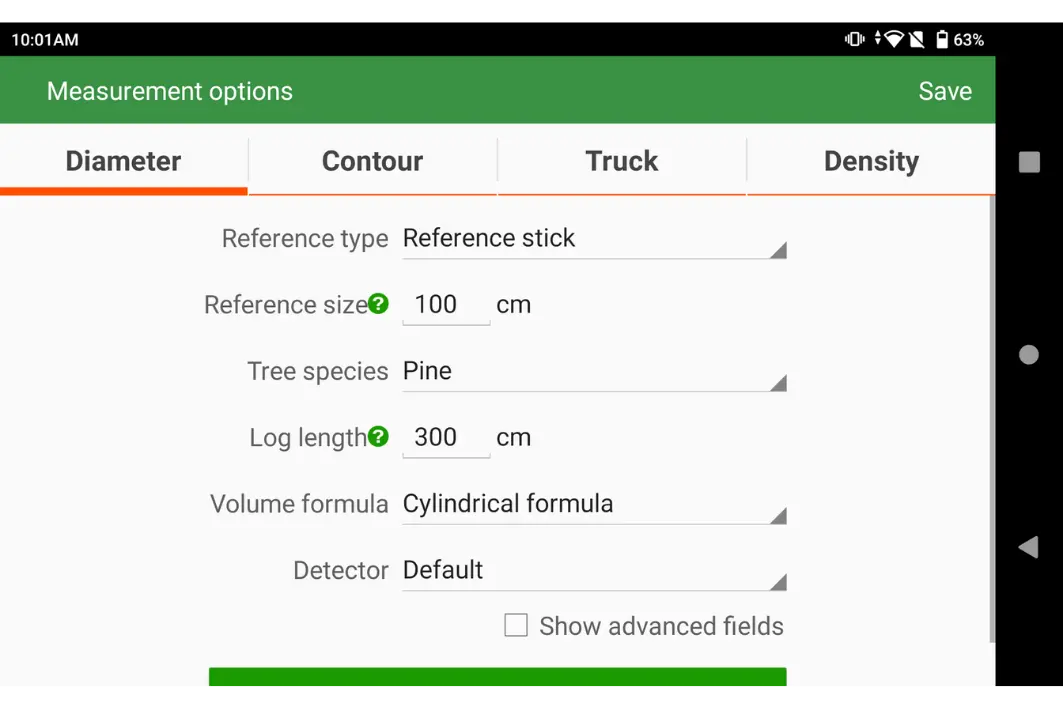
3. Enter measurement data
- After taking the photo, enter the required data:
- Select Diameter as the measurement type
- Enter the reference length
- Enter log length and select tree species
- Choose one of the available volume calculation formulas
- (Optional) Add name, storage, shipment number
- (Optional) Add wood type, quality, assortment, or comment
- Tap Save to continue
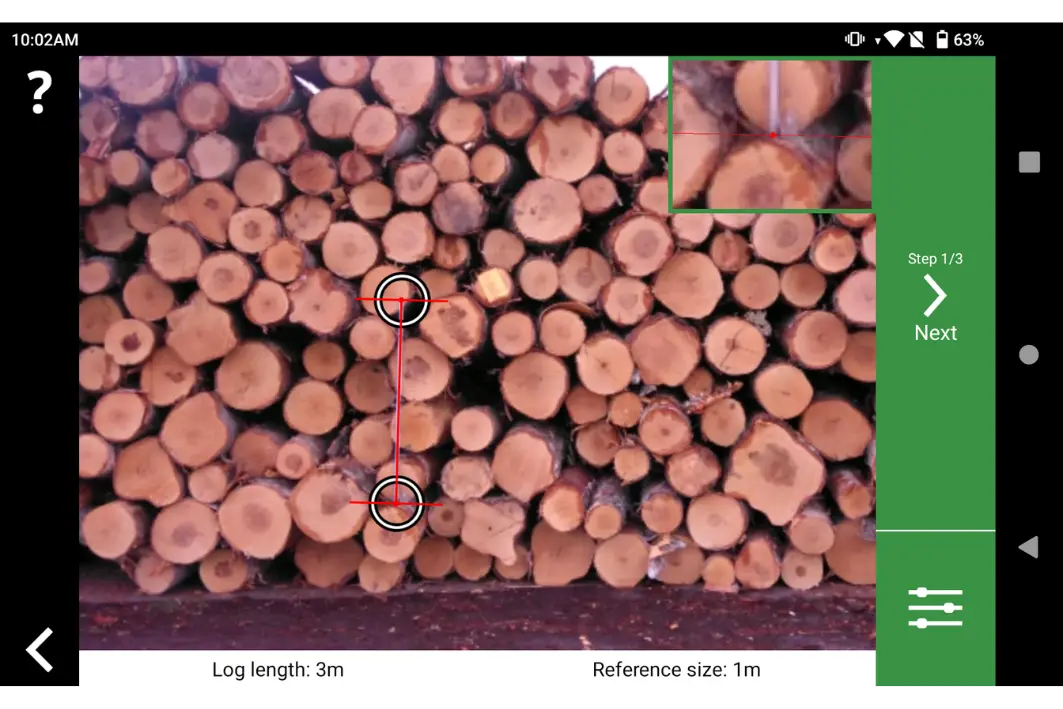
4. Set the reference
- A red reference line with two control points will appear
- Drag the points to match both ends of the reference object
- Use the zoomed-in preview for precise placement
- Tap Next to continue
The reference defines scale, so accuracy here is critical.
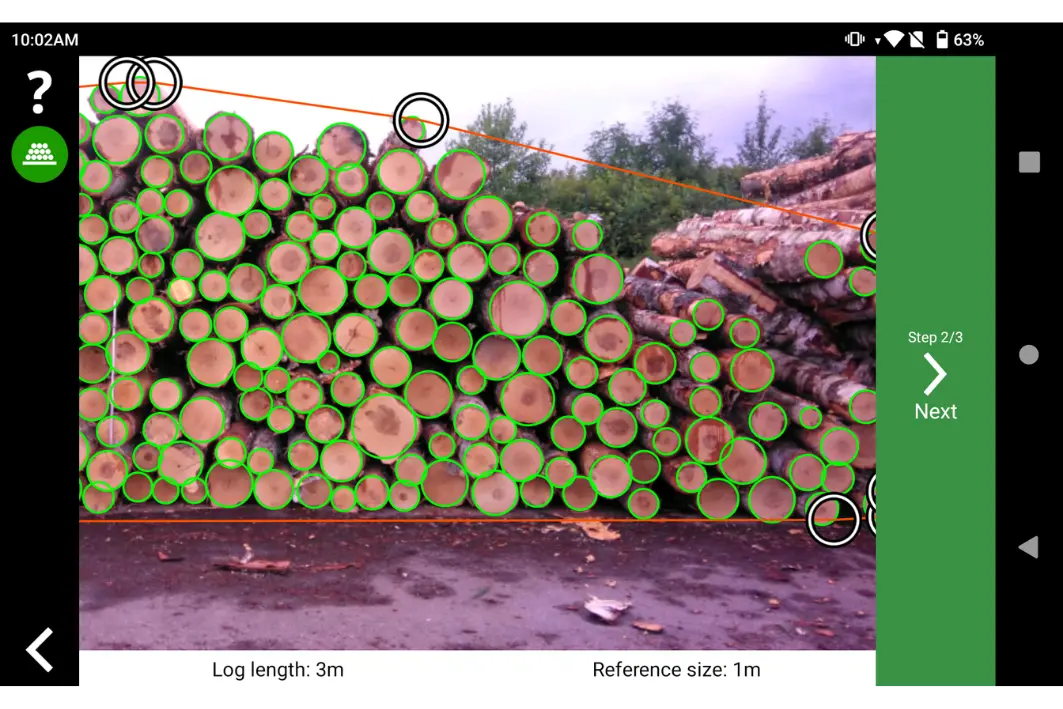
5. Adjust the area of interest
- If the image includes extra logs that should not be measured:
- Adjust the contour using white control points
- Logs outside this area will be excluded from results
- Tap Next when done
This step ensures only relevant logs are included.
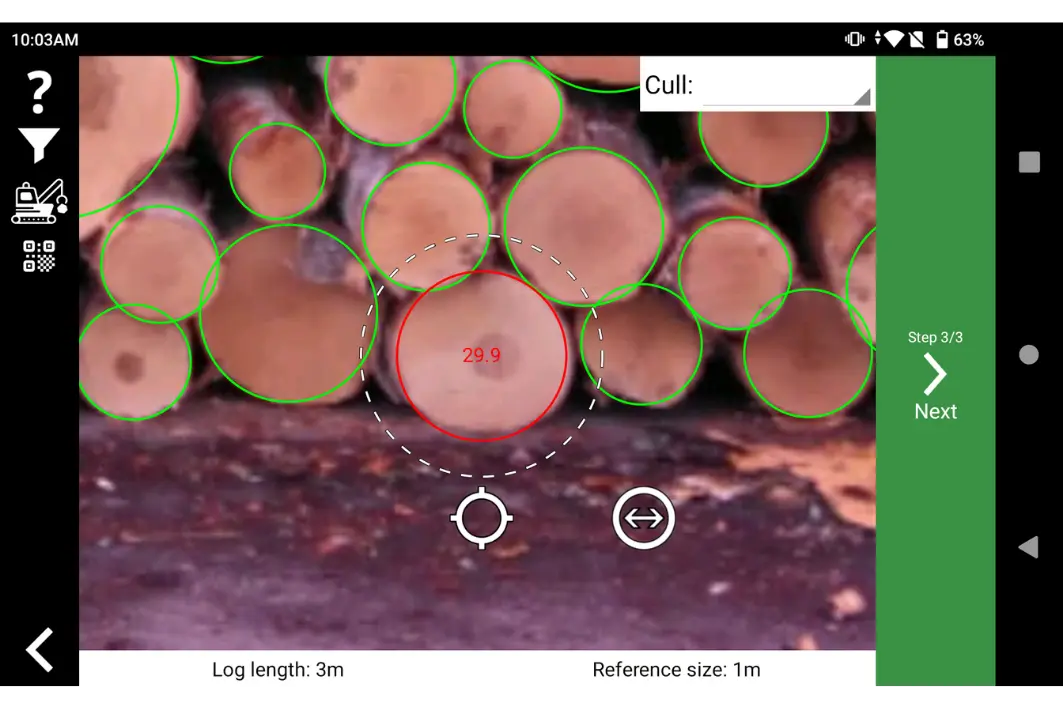
6. Adjust log circles (if needed)
Timbeter automatically detects logs, but manual correction is possible:
- Remove a log: tap and hold on an unnecessary circle
- Add a log: tap and hold on an undetected log
- Adjust circle size and position if needed
- Once satisfied, tap Next.
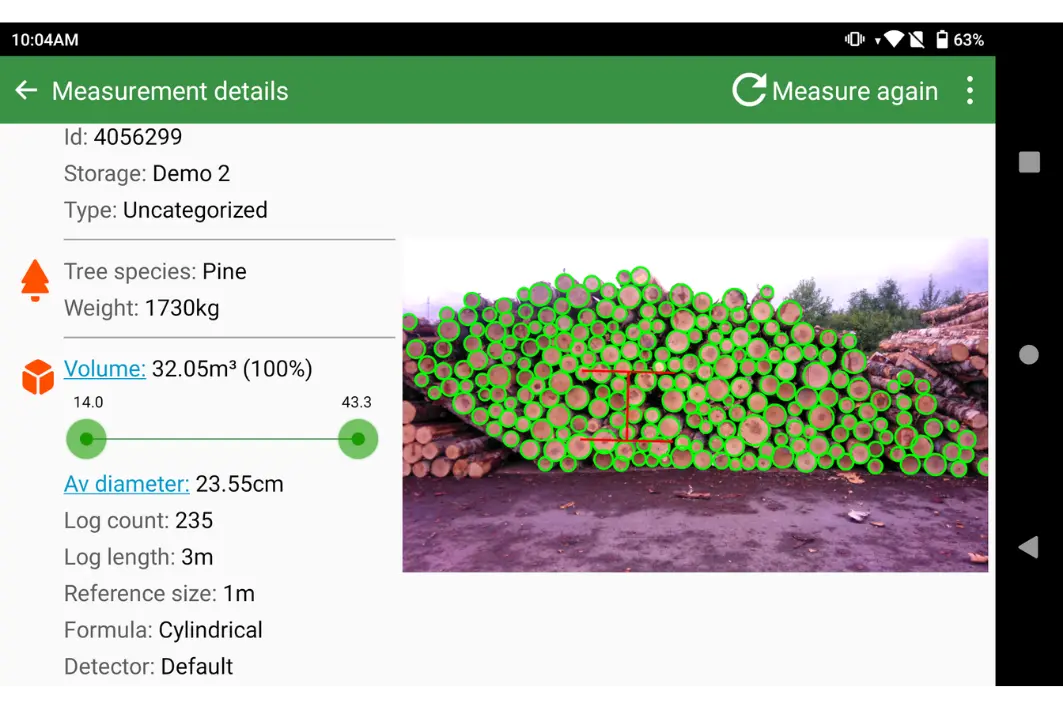
7. Review results
The results screen shows:
- Administrative information
- Total calculated volume
- Average diameter
- Diameter distribution
- All parameters used for calculation
Each log’s diameter is measured individually, ensuring full transparency.
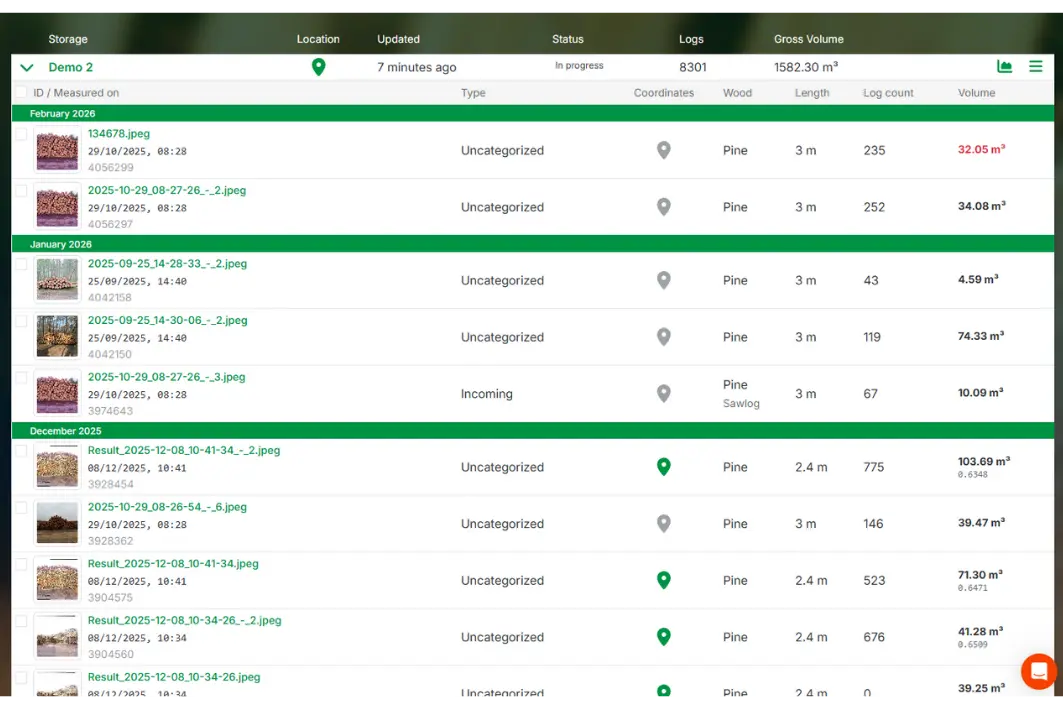
Accessing results on Timbeter Dashboard
After completing a measurement, you can log in to timbeter.com to access all results in one place. Measurements can be reviewed and edited, reports generated, and results exported in PDF or Excel format. Each measurement is linked with GPS location data and can be shared easily with partners, customers, or auditors.
This digital access makes Timbeter especially suitable for audits, logistics planning, and fair trade verification.
Why and when to use Diameter measurement
Diameter measurement with Timbeter replaces subjective manual methods with objective, documented data that can be trusted across operations and partners. It significantly improves time efficiency in the field, reduces human error, and creates full digital traceability from measurement to reporting. Transparent volume calculations support fair trade practices, while better data quality improves logistics planning, safety, and waste reduction.
This approach is especially valuable when measuring roadside or terminal log piles, truck loads, or any situation where log-level detail is required. It is also well suited for markets with strict diameter-based pricing and for cases where transparency is critical, such as audits or dispute resolution.
Want the full Timbeter manual?
If you want a complete overview of all Timbeter functionalities and detailed step-by-step usage instructions, you can download the full Timbeter manual here: https://timbeter.com/Timbeter.pdf
See how precise diameter measurement works in real field conditions.
Discover how Timbeter measures every log from a single photo, calculates volume automatically, and stores results digitally for audits and trade transparency. Book a free demo and see the full workflow in action.